Title Screen
Add a title screen with instructions before the game starts.
Professional games don’t dump you straight into the action. They show a title, explain the controls, and wait for you to press a key. This screen sets expectations and builds anticipation.
The Program
10 BORDER 0
20 PAPER 0
30 INK 7
40 CLS
50 INK 6
60 PRINT AT 3, 8; "TREASURE HUNT"
70 INK 7
80 PRINT AT 7, 4; "Collect all the coins to"
90 PRINT AT 8, 4; "clear each level."
100 PRINT AT 11, 4; "Avoid the hazards! They"
110 PRINT AT 12, 4; "cost you a life."
120 PRINT AT 15, 4; "Controls:"
130 PRINT AT 16, 6; INK 5; "Q"; INK 7; " Up    "; INK 5; "A"; INK 7; " Down"
140 PRINT AT 17, 6; INK 5; "O"; INK 7; " Left   "; INK 5; "P"; INK 7; " Right"
150 INK 3
160 PRINT AT 20, 5; "Press any key to play"
170 INK 7
180 IF INKEY$ = "" THEN GO TO 180
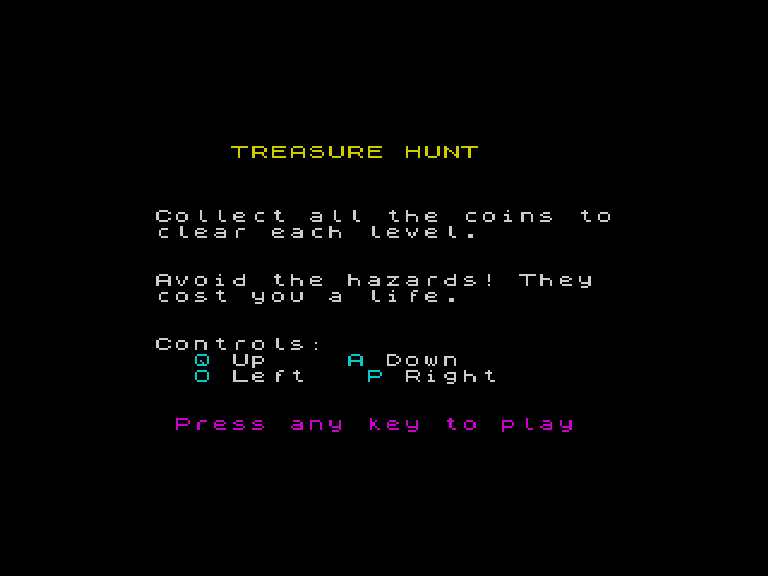
Layout
The screen is carefully composed:
- Row 3 — game title in yellow (
INK 6), centred - Rows 7-8 — objective: collect coins, clear levels
- Rows 11-12 — warning: hazards cost lives
- Row 15 — “Controls:” header
- Rows 16-17 — key layout with cyan keys (
INK 5) and white descriptions - Row 20 — “Press any key to play” in magenta (
INK 3)
Colour for Hierarchy
Different colours draw the eye to different things:
| Element | Colour | Why |
|---|---|---|
| Title | Yellow | Most important — seen first |
| Instructions | White | Readable, neutral |
| Key names | Cyan | Stand out from surrounding text |
| Call to action | Magenta | Draws attention, different from everything else |
The Wait Loop
180 IF INKEY$ = "" THEN GO TO 180The same INKEY$ polling pattern, but here it waits for any key. Once pressed, the program falls through to the game initialisation.
Inline INK Changes
130 PRINT AT 16, 6; INK 5; "Q"; INK 7; " Up "; INK 5; "A"; INK 7; " Down"You can change INK mid-line. Each INK command affects only the text that follows it on that PRINT statement. This lets you colour individual characters differently.
Try This
Animated title. Make the title flash by toggling between INK 6 and INK 2 in a loop before the keypress wait.
Version number. Add PRINT AT 21, 10; INK 5; "Version 1.0" at the bottom.
What You’ve Learnt
- Title screen structure — title, instructions, controls, call to action
- Colour hierarchy — important things get bright colours
- Inline INK — change colour within a single PRINT statement
- Keypress gate — wait for any key before starting