Title Screen
Add a title screen with instructions, controls, and difficulty selection.
Every game needs a first impression. The title screen tells the player what the game is, how to play, and what the symbols mean — all before they see a single mine.
The Program
10 BORDER 0: PAPER 0: INK 7: CLS
20 INK 6
30 PRINT AT 3, 10; "MINEFIELD"
40 INK 7
50 PRINT AT 7, 3; "Reveal all safe cells to win."
60 PRINT AT 8, 3; "Hit a mine and its game over!"
70 PRINT AT 11, 3; "Controls:"
80 PRINT AT 12, 5; INK 5; "Q"; INK 7; " Up    "; INK 5; "A"; INK 7; " Down"
90 PRINT AT 13, 5; INK 5; "O"; INK 7; " Left   "; INK 5; "P"; INK 7; " Right"
100 PRINT AT 14, 5; INK 5; "SPACE"; INK 7; " Reveal cell"
110 PRINT AT 15, 5; INK 5; "F"; INK 7; " Flag/unflag"
120 PRINT AT 18, 3; "Symbols:"
130 PRINT AT 19, 5; INK 1; "."; INK 7; " Hidden  "; INK 6; "3"; INK 7; " Number  "; INK 3; "F"; INK 7; " Flag"
140 INK 3
150 PRINT AT 21, 5; "Press any key to play"
160 INK 7
170 IF INKEY$ = "" THEN GO TO 170
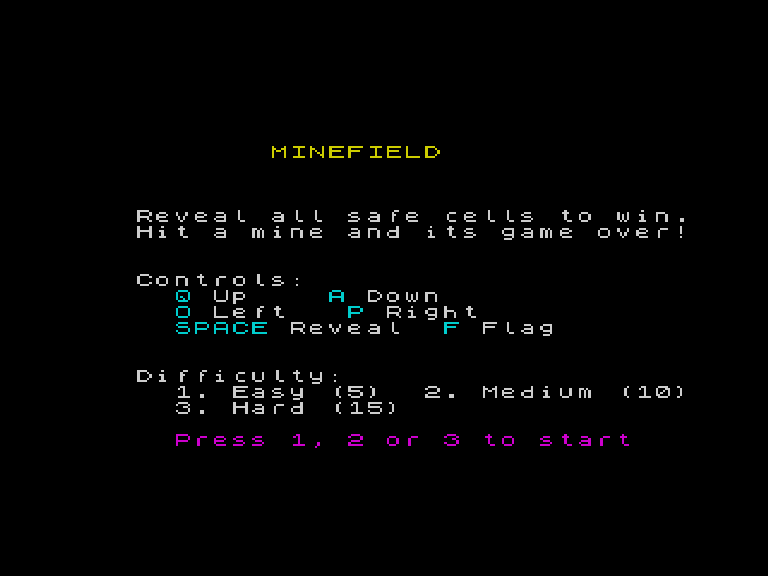
How It Works
Line 30 displays the game title in yellow (INK 6), making it the visual anchor of the screen.
Lines 50-60 explain the goal in plain language. Keep it short — the player wants to start playing, not read an essay.
Lines 70-100 list the controls. Key names are in cyan (INK 5) with white descriptions. This colour coding makes the controls scannable — the player can find the key they need without reading every word.
Lines 120-130 show the symbols used in the game. Seeing ., 3, and F on the title screen means the player won’t be confused when they appear on the grid.
Lines 150-160 prompt the player. Green text draws the eye to the call to action.
Line 170 waits for any keypress: IF INKEY$ = "" THEN GO TO 170. Simple polling loop — the title screen stays until the player is ready.
Layout
The title screen uses PRINT AT to position everything precisely:
| Row | Content |
|---|---|
| 3 | Game title |
| 7-8 | Goal description |
| 11 | ”Controls:” header |
| 12-13 | Movement keys |
| 14-15 | Action keys |
| 18 | ”Symbols:” header |
| 19 | Symbol legend |
| 21 | ”Press any key” prompt |
White space between sections groups related information. The player reads top to bottom: title, goal, controls, symbols, start.
Try This
Difficulty on title. Instead of a separate difficulty menu, add the difficulty selection to the title screen. Replace “Press any key” with “Press 1, 2, or 3” and check for specific keypresses.
Border colour. Set BORDER to a dark colour on the title screen, then change it when the game starts. The transition marks the shift from instructions to action.
What You’ve Learnt
- Title screen layout — title, goal, controls, legend, prompt
- Visual hierarchy — colour and spacing guide the eye
- Colour-coded controls — key names in one colour, descriptions in another
- Symbol legend — showing game elements before they appear