Player Character
Write pixel data to the Spectrum's bitmap memory to draw a character on screen — the first step from coloured blocks to real graphics.
The room has walls, floor, treasure, and a hazard. The keyboard responds. But there’s nobody inside the room. No player, no character, nothing to move. That changes now.
Until this point, everything on screen came from attribute memory — coloured blocks. The actual screen bitmap at $4000–$57FF has been all zeros. Now we write pixel data there to draw a shape. Attributes control what colour a cell is. The bitmap controls which pixels are lit. Together, they produce graphics.
Two Memories, One Screen
The Spectrum’s display is built from two overlapping areas:
| Memory | Address | Controls | Size |
|---|---|---|---|
| Bitmap | $4000–$57FF | Which pixels are lit (1) or unlit (0) | 6,144 bytes |
| Attributes | $5800–$5AFF | INK and PAPER colour per cell | 768 bytes |
A lit pixel (bit = 1) shows the cell’s INK colour. An unlit pixel (bit = 0) shows the PAPER colour. When the bitmap is all zeros — as it has been until now — every pixel shows PAPER. That’s why the floor appeared as solid white blocks and walls as solid blue.
To draw a shape, write 1-bits where you want the INK colour to appear.
Defining a Character
A character cell is 8 pixels wide and 8 pixels tall — one byte per row, eight bytes total. Each bit in a byte maps to one pixel:
            ; Player character — 8 bytes, one per pixel row
            ;
            ; Each bit = one pixel. 1 = INK colour, 0 = PAPER colour.
            ;
            ;   Byte    Binary      Pattern
            ;   $18     00011000    ...##...
            ;   $3C     00111100    ..####..
            ;   $7E     01111110    .######.
            ;   $FF     11111111    ########
            ;   $FF     11111111    ########
            ;   $7E     01111110    .######.
            ;   $3C     00111100    ..####..
            ;   $18     00011000    ...##...

player_gfx: db      $18, $3c, $7e, $ff
            db      $ff, $7e, $3c, $18
The DB directive (Define Byte) places raw data bytes into the program. These aren’t instructions — the Z80 never executes them. They’re data that your drawing code reads.
The label player_gfx marks the address of the first byte. When the assembler sees ld de, player_gfx, it substitutes the actual address where the data was placed in memory.
Design your own characters on graph paper: 8 columns, 8 rows. Fill in squares for the pixels you want, then convert each row to a hex byte. Left-most pixel = bit 7, right-most = bit 0.
Screen Memory Layout
Here’s the catch. Screen bitmap memory isn’t laid out the way you’d expect.
For attribute memory, the next row is always 32 bytes ahead. Simple. For the bitmap, it’s different. Within a single character cell, the 8 pixel rows are 256 bytes apart — not 32.
The Spectrum’s screen is divided into three thirds:
| Rows | Base Address |
|---|---|
| 0–7 | $4000 |
| 8–15 | $4800 |
| 16–23 | $5000 |
To find the bitmap address for a character at row R, column C:
1. Find the third:  rows 0-7 → $4000,  rows 8-15 → $4800,  rows 16-23 → $5000
2. Character row within the third:  r = R mod 8
3. Address = third_base + (r × 32) + C
Our player starts at row 11, column 13. Row 11 is in the middle third ($4800). Character row within the third is 11 − 8 = 3.
$4800 + (3 × 32) + 13 = $4800 + 96 + 13 = $486DThat’s the address of the first pixel row. The second is at $486D + 256 = $496D, the third at $4A6D, and so on. Since adding 256 just increments the high byte of the address, there’s a clean trick: INC H.
Drawing the Character
            ; Draw an 8x8 character to screen RAM
            ;
            ; HL = screen address (first pixel row of the cell)
            ; DE = address of 8-byte character data
            ;
            ; INC H advances to the next pixel row (+256 bytes).
            ; Within a character cell, pixel rows are always 256
            ; bytes apart — so incrementing the high byte of HL
            ; moves down one pixel.

            ld      hl, $486d       ; Screen address: row 11, col 13
            ld      de, player_gfx  ; Character data
            ld      b, 8            ; 8 pixel rows

.draw:      ld      a, (de)         ; Load byte from pattern
            ld      (hl), a         ; Write to screen
            inc     de              ; Next pattern byte
            inc     h               ; Next pixel row (+256)
            djnz    .draw
LD A, (DE) loads a byte from the address held in DE — the character data. LD (HL), A writes it to the screen address in HL. INC DE advances to the next data byte. INC H advances to the next pixel row (adds 256 to HL by incrementing just the high byte).
The DJNZ loop runs 8 times — one for each pixel row. After 8 iterations, the full character appears on screen.
INC H — The Pixel Row Trick
Within a character cell, consecutive pixel rows are exactly 256 bytes apart. Since 256 = $0100, adding 256 is the same as adding 1 to the high byte of the address:
$486D → $496D → $4A6D → $4B6D → $4C6D → $4D6D → $4E6D → $4F6D
  48      49      4A      4B      4C      4D      4E      4F
INC H does this in a single instruction. It only works within a character cell (8 rows). For moving between character cells, you’d need different arithmetic — but that’s a problem for later.
Setting the Player Attribute
The bitmap controls which pixels are lit, but the colour comes from the attribute. After drawing the character, set the attribute to give the player a distinct colour:
            ld      a, PLAYER       ; $3A = PAPER 7 (white) + INK 2 (red)
            ld      (PLAYER_ATT), a ; Attribute at row 11, col 13
PLAYER_ATT is $596D — the attribute address for row 11, column 13 (same formula as before: $5800 + (11 × 32) + 13). The player appears as a red shape on a white background, matching the floor PAPER but with a distinct INK colour.
Position Variables
The player’s position is stored in two bytes after the program code:
player_row: db      START_ROW       ; 11
player_col: db      START_COL       ; 13
These aren’t used yet — the character is drawn at a fixed position. In Unit 6, the keyboard input will modify these variables and the character will move. Storing the position now means Unit 6 can focus on movement logic rather than setup.
The Complete Code
; ============================================================================
; SHADOWKEEP — Unit 5: Player Character
; ============================================================================
; Draw an 8x8 character to screen bitmap memory using a data table.
;
; Until now, we've only written to attribute memory ($5800+).
; The screen bitmap ($4000–$57FF) controls which pixels are lit.
; Each byte = 8 pixels. 1-bits show the cell's INK colour,
; 0-bits show the PAPER colour.
;
; Within a character cell, the 8 pixel rows are 256 bytes apart.
; INC H moves down one pixel row inside the cell.
; ============================================================================

            org     32768

; Attribute values
WALL        equ     $09             ; PAPER 1 (blue) + INK 1
FLOOR       equ     $38             ; PAPER 7 (white) + INK 0
TREASURE    equ     $70             ; BRIGHT + PAPER 6 (yellow)
HAZARD      equ     $90             ; FLASH + PAPER 2 (red)
PLAYER      equ     $3a             ; PAPER 7 (white) + INK 2 (red)

; Room dimensions
ROOM_TOP    equ     10
ROOM_LEFT   equ     12
ROOM_WIDTH  equ     9
ROOM_INNER  equ     7

; Player starting position
START_ROW   equ     11
START_COL   equ     13

; Screen addresses for player start
; Bitmap: $4800 + ((11-8) * 32) + 13 = $486D
; Attribute: $5800 + (11 * 32) + 13 = $596D
PLAYER_SCR  equ     $486d
PLAYER_ATT  equ     $596d

; Keyboard rows
KEY_ROW_QT  equ     $fb             ; Q, W, E, R, T
KEY_ROW_AG  equ     $fd             ; A, S, D, F, G
KEY_ROW_PY  equ     $df             ; P, O, I, U, Y

; ----------------------------------------------------------------------------
; Entry point
; ----------------------------------------------------------------------------

start:
            ; Black border
            ld      a, 0
            out     ($fe), a

            ; Clear screen
            ld      hl, $4000
            ld      de, $4001
            ld      bc, 6911
            ld      (hl), 0
            ldir

            ; ==================================================================
            ; Draw the room (same as Unit 3)
            ; ==================================================================

            ; --- Top wall ---
            ld      hl, $594c       ; Row 10, col 12
            ld      b, ROOM_WIDTH
            ld      a, WALL
.top:       ld      (hl), a
            inc     hl
            djnz    .top

            ; --- Row 11: wall, floor, wall ---
            ld      hl, $596c
            ld      a, WALL
            ld      (hl), a
            inc     hl
            ld      a, FLOOR
            ld      b, ROOM_INNER
.r11:       ld      (hl), a
            inc     hl
            djnz    .r11
            ld      a, WALL
            ld      (hl), a

            ; --- Row 12: wall, floor, wall ---
            ld      hl, $598c
            ld      a, WALL
            ld      (hl), a
            inc     hl
            ld      a, FLOOR
            ld      b, ROOM_INNER
.r12:       ld      (hl), a
            inc     hl
            djnz    .r12
            ld      a, WALL
            ld      (hl), a

            ; --- Row 13: wall, floor, wall ---
            ld      hl, $59ac
            ld      a, WALL
            ld      (hl), a
            inc     hl
            ld      a, FLOOR
            ld      b, ROOM_INNER
.r13:       ld      (hl), a
            inc     hl
            djnz    .r13
            ld      a, WALL
            ld      (hl), a

            ; --- Bottom wall ---
            ld      hl, $59cc
            ld      b, ROOM_WIDTH
            ld      a, WALL
.bot:       ld      (hl), a
            inc     hl
            djnz    .bot

            ; --- Treasure and hazard ---
            ld      a, TREASURE
            ld      ($5990), a      ; Row 12, col 16
            ld      a, HAZARD
            ld      ($59af), a      ; Row 13, col 15

            ; ==================================================================
            ; Draw the player character
            ; ==================================================================

            ; --- Write pixel data to screen bitmap ---
            ld      hl, PLAYER_SCR  ; Screen bitmap address
            ld      de, player_gfx  ; Character data
            ld      b, 8            ; 8 pixel rows

.draw:      ld      a, (de)         ; Load byte from pattern
            ld      (hl), a         ; Write to screen
            inc     de              ; Next pattern byte
            inc     h               ; Next pixel row (+256)
            djnz    .draw

            ; --- Set player attribute ---
            ld      a, PLAYER
            ld      (PLAYER_ATT), a ; Red INK on white PAPER

            ; ==================================================================
            ; Main loop — read keyboard, change border
            ; ==================================================================

.loop:      halt

            ld      a, 0
            out     ($fe), a        ; Default: black border

            ; --- Check Q (up) ---
            ld      a, KEY_ROW_QT
            in      a, ($fe)
            bit     0, a
            jr      nz, .not_q
            ld      a, 1            ; Blue border
            out     ($fe), a
.not_q:
            ; --- Check A (down) ---
            ld      a, KEY_ROW_AG
            in      a, ($fe)
            bit     0, a
            jr      nz, .not_a
            ld      a, 2            ; Red border
            out     ($fe), a
.not_a:
            ; --- Check O (left) ---
            ld      a, KEY_ROW_PY
            in      a, ($fe)
            bit     1, a
            jr      nz, .not_o
            ld      a, 4            ; Green border
            out     ($fe), a
.not_o:
            ; --- Check P (right) ---
            ld      a, KEY_ROW_PY
            in      a, ($fe)
            bit     0, a
            jr      nz, .not_p
            ld      a, 6            ; Yellow border
            out     ($fe), a
.not_p:
            jr      .loop

; ============================================================================
; Data
; ============================================================================

; Player character — diamond shape
;   ...##...   $18
;   ..####..   $3C
;   .######.   $7E
;   ########   $FF
;   ########   $FF
;   .######.   $7E
;   ..####..   $3C
;   ...##...   $18

player_gfx: db      $18, $3c, $7e, $ff
            db      $ff, $7e, $3c, $18

; Player position (used for movement in Unit 6)
player_row: db      START_ROW
player_col: db      START_COL

            end     start
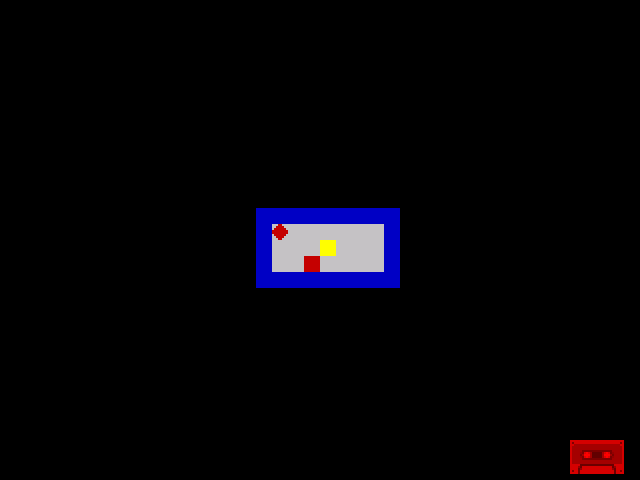
The red diamond sits inside the room on the white floor. It’s drawn from 8 bytes of data — a tiny amount of memory for a visible character. The keyboard still changes the border colour (carried forward from Unit 4), but the character doesn’t move yet. That’s next.
Try This: Different Shape
Replace the player data with an arrow pointing right:
;   ..#.....   $20
;   ..##....   $30
;   ..###...   $38
;   ..####..   $3C
;   ..###...   $38
;   ..##....   $30
;   ..#.....   $20
;   ........   $00

player_gfx: db      $20, $30, $38, $3c
            db      $38, $30, $20, $00
Try designing your own: a cross, a circle, a letter, an arrow pointing up. Eight bytes, eight rows, any pattern you like.
Try This: Change the Player Colour
The player attribute $3A gives red INK on white PAPER. Try other INK colours:
| Value | INK | Appearance |
|---|---|---|
$3A | Red | Red on white |
$3C | Green | Green on white |
$3D | Cyan | Cyan on white |
$3E | Yellow | Yellow on white |
Change the PLAYER equ line and reassemble. The diamond changes colour instantly.
Try This: Second Character
Draw a second character at row 13, column 17. You’ll need the bitmap address:
Row 13 is in the middle third ($4800)
Character row within third: 13 - 8 = 5
$4800 + (5 × 32) + 17 = $4800 + 160 + 17 = $48B1
Add this after the first draw loop:
            ld      hl, $48b1       ; Row 13, col 17
            ld      de, player_gfx  ; Same character data
            ld      b, 8
.draw2:     ld      a, (de)
            ld      (hl), a
            inc     de
            inc     h
            djnz    .draw2
Two identical characters appear. In a real game, enemies would use different DB data for different shapes.
If It Doesn’t Work
- Character doesn’t appear? Check you’re writing to the bitmap ($4000–$57FF), not attributes ($5800+). A common mistake is using the attribute address.
- Character appears in the wrong place? Check the screen address calculation. The thirds layout catches everyone — row 11 uses base $4800 (middle third), not $4000.
- Character is black on black? The INK colour comes from the attribute. If you don’t set the attribute, it defaults to black INK on black PAPER — invisible. Always set the attribute after drawing.
- Pixels are garbled? Make sure
INC His inside the loop, notINC HL.INC HLadds 1 (next byte in the row), not 256 (next pixel row). You wantINC Hto advance downward. - Character data is executed? The
DBbytes must be after the infiniteJR .loop— otherwise the Z80 tries to execute them as instructions. Place data where execution can never reach it.
What You’ve Learnt
- Screen bitmap — $4000 to $57FF controls which pixels are lit. Bits set to 1 show the INK colour; bits set to 0 show the PAPER colour.
- DB — define byte. Places raw data in the program. Used for character graphics, level data, and any constant information.
- LD A, (DE) — load a byte from the address held in DE. DE acts as a data pointer, paired with HL as the screen pointer.
- INC H — increment the high byte of HL. Within a character cell, this advances to the next pixel row (256 bytes apart). The Spectrum’s screen layout makes this trick possible.
- Screen address calculation — three thirds ($4000, $4800, $5000), then (row_within_third × 32) + column. Pixel rows within a cell are 256 bytes apart.
- Position variables —
DBcan store mutable data too.player_rowandplayer_colwill track the character’s position once movement is added.
What’s Next
The character is on screen but frozen. Press Q, A, O, P — the border changes but the diamond doesn’t move. In Unit 6, you’ll connect the keyboard to the position variables. Each key press will erase the character, update the position, and redraw at the new location. The maze explorer starts to explore.