The Game Screen
Set up a black screen with a red header bar using CLS, BORDER, PAPER, INK, and PRINT AT — the game looks real from the first line.
Over the next eight units you’ll build Bomb Defusal — a game where a ticking bomb counts down and you must cut the right wire before time runs out. The big block digits from Lucky Number return, but now they’re counting down. Some of the subroutines are familiar — the digit renderer is the same one you typed in for Game 1. The game logic is yours to build.
Placing Text on Screen
The Spectrum screen is a grid — 32 columns wide and 22 rows tall. PRINT puts text at the current cursor position, one line after another. But games don’t scroll. Games put text exactly where it needs to be. That’s what PRINT AT does.
Type NEW, then:
  10 CLS
  20 PRINT AT 0,0;"Top left"
  30 PRINT AT 0,22;"Top right"
  40 PRINT AT 10,12;"Middle"
  50 PRINT AT 21,0;"Bottom"
Type RUN. Text appears in four different places — top left, top right, middle, and bottom. No scrolling. Each PRINT AT takes two numbers: the row (0 is the top, 21 is the bottom) and the column (0 is the left, 31 is the right). The text starts at those coordinates.
This is how every game draws its screen. Health bars, score counters, titles, prompts — they all use PRINT AT to place text at exact positions on a grid.
A Black Screen
Games don’t use the default white background. Type NEW, then:
10 BORDER 0: PAPER 0: INK 7: CLSType RUN. The screen goes black. The border (the frame around the screen) goes black. White text is now the default.
Four commands work together here:
BORDER 0— sets the border to black (colour 0)PAPER 0— sets the background colour for text to blackINK 7— sets the text colour to whiteCLS— clears the screen, filling it with the current PAPER colour
Without CLS, the old white background stays. CLS repaints the entire screen in whatever PAPER colour is active. That’s why you set PAPER before calling CLS.
The Header Bar
Now build the game screen. Type NEW, then:
   5 BORDER 0: PAPER 0: INK 7: CLS
  10 FOR i=0 TO 31
  12 PRINT AT 0,i; PAPER 2;" "
  14 NEXT i
  16 PRINT AT 0,8; PAPER 2; INK 7; BRIGHT 1;" BOMB DEFUSAL "
  18 PRINT AT 0,26; PAPER 2; INK 6;"Sc: 0"
Type RUN.
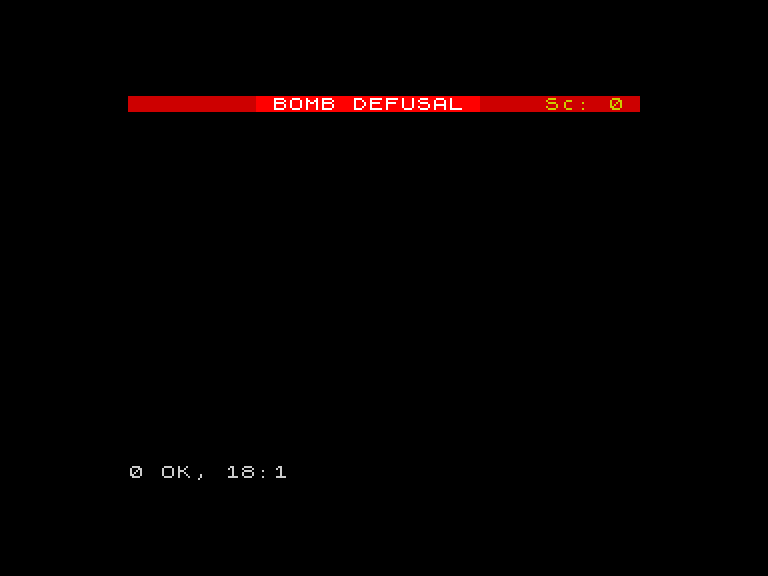
A red header bar stretches across the top of the screen. “BOMB DEFUSAL” sits in the centre in bright white. A yellow score counter sits on the right. Below that — nothing but black space, waiting for the countdown, the fuse, and the wires.
The FOR loop on lines 10-14 paints the header. It visits every column (0 to 31) and prints a red space at row 0. A space with PAPER 2 is a red square. Thirty-two red squares in a row make a bar.
Line 16 prints the title on top of that bar. BRIGHT 1 makes the text bolder — the Spectrum has two brightness levels for each colour, and BRIGHT 1 uses the brighter one. Line 18 prints the score in yellow (INK 6).
This screen is the skeleton of every bomb round. The countdown digit, the fuse, and the wires will fill the empty space below.
Try This
- Change
PAPER 2on line 12 toPAPER 1(blue) orPAPER 4(green). The header bar changes colour. Pick one you like. - Move the title. Change
AT 0,8on line 16 toAT 0,0. The text shifts to the left edge. TryAT 0,12— it shifts right. The second number is the column. - Add a second line of text:
19 PRINT AT 2,4; INK 5;"A bomb is ticking...". It appears below the header in cyan.
What You’ve Learnt
- PRINT AT row,column — places text at an exact position on the screen grid (22 rows, 32 columns)
- CLS — clears the screen and fills it with the current PAPER colour
- BORDER, PAPER, INK — control the border colour, background colour, and text colour (0-7)
- BRIGHT 1 — makes text and colours bolder
- A FOR loop to paint a bar — printing coloured spaces in a row creates a solid block of colour