Slices and the Display
A slice is Blitz's description of a region of the screen — how tall, how many colours, what resolution. The power is that you can have more than one, carving the display into independent bands. It's something the Amiga's normal screens make hard, and it's pure Blitz mode.
You’ve used a slice already — Slice 0,44,3 set up a display and Show put a bitmap in it. Now meet slices properly, because they’re the heart of Blitz mode’s graphics. A slice is a description of a region of the screen: where it starts, how tall it is, how many colours, what resolution. And here’s the trick that makes them special — you can have more than one, stacked down the screen, each its own independent band. That’s how Blitz games put a scrolling play-area above a rock-steady score panel, and it’s something the Amiga’s ordinary screens make hard.
What you’ll see by the end
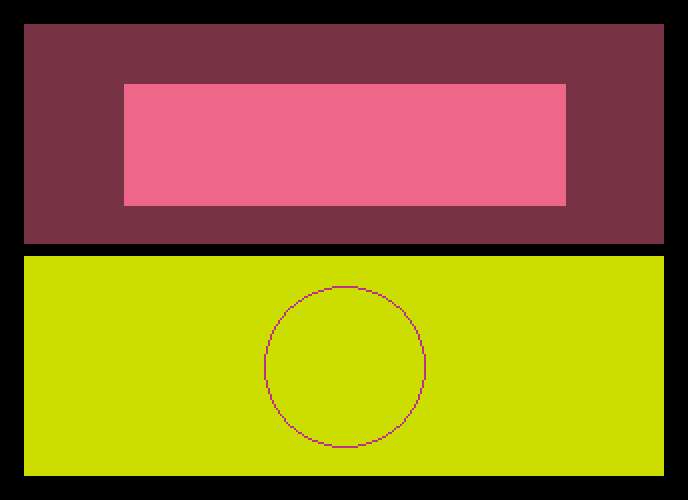
The screen is split into two bands. The top shows one bitmap (a box on maroon), the bottom another (a circle on yellow-green). They’re genuinely separate displays stacked on one screen — each could even have its own resolution or palette. Two slices made that.
The whole program
; Two slices carve the display into two independent regions.
BLITZ
  BitMap 0,320,128,3
  Cls 1
  Boxf 50,30,270,90,2

  BitMap 1,320,128,3
  Cls 4
  Circle 160,55,40,6

  VWait 100
  Slice 0,44,320,110,$fff8,3,8,8,320,320
  Use Slice 0
  Show 0
  Slice 1,160,320,110,$fff8,3,8,8,320,320
  Use Slice 1
  Show 1
  MouseWait
There are two bitmaps and two slices, paired up:
Slice 0,44,320,110,$fff8,3,8,8,320,320
Use Slice 0
Show 0
Slice 1,160,320,110,$fff8,3,8,8,320,320
Use Slice 1
Show 1
This is the full form of Slice, which spells out the region exactly. Reading the numbers for slice 0:
0— the slice number.44— the y position: the scanline where this band starts (44 is near the top).320,110— the width and height in pixels: 320 wide, 110 tall.$fff8— the flags, which set the slice’s type.$fff8is a standard low-res slice; there are others for hi-res and dual-playfield.3— the bitplanes (depth), so 8 colours, matching the bitmap.8,8— sprite channels and colours available.320,320— the widths of the bitmap(s) shown, for scrolling purposes.
The second slice is the same, but at y position 160 — lower down the screen. The two don’t overlap (the top ends at 154, the bottom starts at 160), which is the one rule: slices can’t overlap, and need a couple of blank scanlines between them.
Then it’s the familiar pair, twice: Use Slice picks which slice you’re working with, and Show puts a bitmap into it. Slice 0 shows bitmap 0; slice 1 shows bitmap 1.
Two forms of Slice
You’ve now seen both:
- Short form —
Slice 0,44,3: slice number, y, and depth. Quick; gives a full-screen-height, lo-res slice. Perfect when you just want one display. - Full form — the ten-value version above: when you want a specific size, a hi-res or dual-playfield type, or more than one slice sharing the screen.
Reach for the short form by default; step up to the full form when you’re carving the screen or need a particular display type.
Why this is a Blitz-mode thing
On the Amiga’s normal screens — the ones the operating system manages — splitting the display into bands with different properties is fiddly, low-level work. In Blitz mode, where your program owns the display hardware directly, a slice is that low-level control, handed to you as one command. Want a 32-colour status bar above a fast 8-colour play-field? Two slices. This direct command of the display is exactly the kind of power you traded the operating system away for.
Type it and compile it
Type the program into Ted and press right-Amiga + X (recompile if Blitz asks about memory). The screen splits into two bands. Click the mouse to return to the editor.
Try this: move the divide
Change the bottom slice’s y from 160 to 120, and its height — and the top slice’s height — so they still don’t overlap (try top height 70, bottom y 120). The dividing line moves up the screen. The y and height are yours to set; that’s how you’d size a play-area and a panel.
Try this: a deeper top band
Change the top slice’s bitplanes from 3 to 5 — and the top BitMap 0 line to BitMap 0,320,128,5 to match. Now the top band can show 32 colours while the bottom stays at 8. Two regions, two different colour depths, on one screen — the thing slices do that a single screen can’t.
If it doesn’t work
- The machine locks or the display is garbage. The slices probably overlap. Each slice’s start-plus-height must end before the next one begins, with a line or two to spare.
- A band is the wrong depth or shows nothing. A slice’s bitplane count must match the bitmap you
Showin it, and you mustUse Slicebefore theShowso Blitz knows which slice you mean. - Blitz rejects the
Sliceline. Count the values — the full form needs all ten, comma-separated.
What you’ve learnt
A slice describes a region of the display: position, size, colour depth, resolution. The short form (Slice n,y,depth) gives a quick full-height display; the full form spells out size and type, and lets you stack several non-overlapping slices to carve the screen into independent bands — different content, even different depths, on one display. Use Slice then Show puts a bitmap in a slice. This direct command of the display hardware is the core of Blitz-mode graphics.
What’s next
You can build and carve a display. Now you need things to put on it — reusable graphics, not just boxes and circles. Next — Shapes — grabbing a picture into a shape you can stamp down anywhere, as many times as you like.