Type and Run
Everything starts here: type a program into the AMOS editor, press one key, and watch it run. Before you can make anything, you need the loop of writing, running, and seeing the result — so let's make the Amiga say hello.
Before you can make a game, you need the loop that everything else hangs off: type a program, run it, see what happened. In AMOS that loop is about as short as it gets — you type into the editor, press one key, and the Amiga does what you said. This whole course is just that loop, over and over, with something new each time. So let’s go round it once and make the machine say hello.
What you’ll see by the end
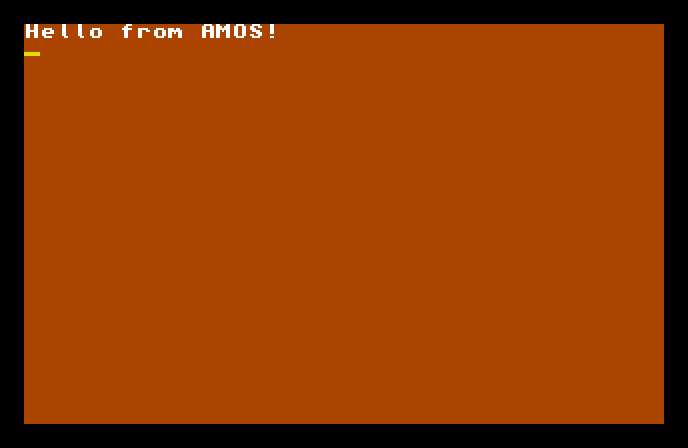
The screen clears to AMOS’s orange, and your message appears: Hello from AMOS! That’s a program — one you wrote — running on the Amiga.
The whole program
Hide
Print "Hello from AMOS!"
Wait Key
Three lines, and only the middle one is the point:
Print "Hello from AMOS!"puts the text inside the quotes onto the screen.Printis the workhorse you’ll lean on constantly — give it something in quotes and it shows up.Hidetucks the mouse pointer out of the way, so it isn’t sitting in the middle of your screen. A small courtesy you’ll want in almost every program.Wait Keypauses the program until you press a key. Without it, AMOS would run all three lines in a blink and whisk you straight back to the editor before you saw a thing — soWait Keyholds your result on screen until you’re ready.
AMOS doesn’t mind whether you type Print or print or PRINT — it tidies keywords up for you as you go. The capital letters in the listing are just AMOS being neat.
Type it and run it
Open the AMOS editor, type the three lines, and press F1.
That’s the whole “build”. There’s no separate step that turns your text into something runnable — AMOS is the program that runs your program, so pressing F1 goes straight from what you typed to what you see. Press a key to come back to the editor when you’re done looking.
Try this: say something else
Change the words inside the quotes — your name, a question, anything — and press F1 again. Whatever you put between the " marks is what appears. The quotes matter: they tell AMOS “this is text to show,” not a command to obey.
Try this: print twice
Add a second Print line above Wait Key:
Print "Hello from AMOS!"
Print "Made on an Amiga."
Wait Key
Run it, and the second line appears below the first — Print always carries on from where the last one left off, working down the screen.
If it doesn’t work
- Nothing appears, or it flashes and vanishes. The
Wait Keyline is missing or misspelt, so the program ends instantly. It needs to be there to hold the screen. - AMOS complains when you run it. Check the quotes — every
"that opens a piece of text needs a"to close it. A missing quote is the most common first-program slip. - The mouse pointer is sitting on your text. The
Hideline isn’t there, or is spelt wrong. Add it at the top.
What you’ve learnt
The whole loop: type a program in the AMOS editor, press F1, watch it run. Print shows text inside quotes, Wait Key holds the result on screen so you can see it, and Hide clears the mouse pointer out of the way. There’s no separate build step — in AMOS, running is one keystroke.
What’s next
You’ve put words on the screen; now let’s get particular about where and how. Next — Print and the Screen — placing text exactly where you want it, and clearing the screen to start fresh.