The Keyboard Types Words
Type your first Sinclair BASIC line, run it, and read the report the Spectrum prints back. Meet the keyboard that types whole words from a single key — and the type-run loop you'll use all primer.
New to programming entirely? Start with General Programming — it teaches the ideas this primer writes in Sinclair BASIC. If you’ve met variables, loops and decisions before, in any language, you’re in the right place.
You already know what it means to tell a computer to show something — in General
Programming you wrote SHOW "Hello". Now you’ll say it to a real Spectrum, in its own
language, and watch it answer. The first surprise is the keyboard: on the Spectrum, one
key types a whole word.
Milestone 1 — your first line
10 PRINT "Hello"
Type the 10, then press P — the whole word PRINT appears. That’s keyword entry:
the Spectrum’s keys are loaded with BASIC words, and in command mode a single press
types the whole keyword, not the letter. Finish the line — a space, "Hello" in
quotes — and press Enter. Then type RUN and press Enter again.
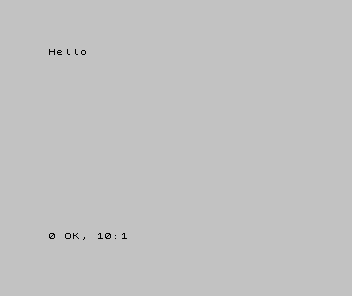
Two things happened. The screen printed Hello — you told the machine what to say, and
it said it. And at the bottom appeared 0 OK, 10:1 — the report line, the Spectrum
telling you how it stopped: report 0 (OK), having run as far as line 10. The
report is the machine talking back, and you’ll learn to read it closely; for now, 0 OK
means “that ran cleanly.”
Milestone 2 — a second line, and the loop
A program is rarely one line. Add a second, with a higher number, and run it again:
| 1 | 1 | 10 PRINT "Hello" | |
| 2 | + | 20 PRINT "from the Spectrum" | |
| 2 | 3 | |
Type line 20 — P for PRINT again — and Enter, then RUN. Both lines print, in
order, and the report now reads 0 OK, 20:1: it ran as far as line 20 this time.
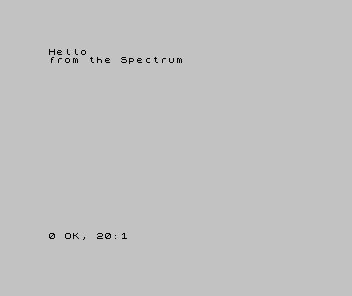
You’ve just done the whole rhythm of writing BASIC: type a line, RUN, read the
result, type the next. Every program in this primer grows that way, one line and one
run at a time.
When it doesn’t work
The first line fails in small, recognisable ways — and the report line names each one:
Nonsense in BASIC. Usually a missing quotation mark.PRINTneeds both quotes around its text —PRINT "Hello", notPRINT "Hello. Read the report’s line number, list that line, and look for the unclosed quote.- The word came out as letters —
PRINTbecameP R I N T. You typed it letter by letter while the machine was expecting a whole keyword. Delete the line and press the singlePkey in command mode; the whole word arrives at once. - Nothing ran. You pressed Enter to store the line but never typed
RUN. Storing a line and running the program are two separate steps.
Reading the report and fixing what it points at — not guessing — is the habit this whole primer is built on. You’ll meet it in earnest in the last unit.
Before and after
You started at a blank, cold machine and finished with a two-line program you typed, ran, and grew. The lesson underneath: a single key types a whole BASIC word, and the report line tells you how the program stopped. Everything from here is more lines, typed the same way.
Try this
- Change the message. Type line
10again with a different word in the quotes, thenRUN. The new line 10 replaces the old one — the first hint of how editing works (Unit 2’s subject). - A third line. Add line
30with another message. Predict the report before you run it. - Break it on purpose. Leave off the closing quote and run it. Read the
Nonsense in BASICreport, then put the quote back. Seeing the failure once is how you’ll recognise it later.
What you’ve learnt
- The Spectrum’s keys type whole BASIC words —
PgivesPRINTin command mode. PRINTshows text; text goes in quotes.- You write a program by typing a numbered line, then
RUN— and repeating. - The report line (
0 OK, 20:1) is the machine telling you how it stopped;0 OKmeans it ran cleanly.
What’s next
Both your lines have numbers — 10 and 20 — and they ran in that order. Those numbers
are more than labels: each one is an address you can write to, replace, and slip
between. In Unit 2 we use them to edit a program.