Open a Screen
Until now you've printed onto the screen AMOS handed you. Now you make your own — choosing its size, how many colours it can show, and whether it's low or high resolution. One command, and you've got a display built to your spec to draw on.
Everything you’ve printed so far landed on a screen AMOS set up for you before your program even started. That’s fine for getting going — but a game wants a display built to its needs: the right size, the right number of colours, the right resolution. On the Amiga, a “screen” is a real thing you create and configure, and AMOS lets you open one with a single command. This is the first unit where you stop borrowing the Amiga’s defaults and start telling it what you want.
What you’ll see by the end
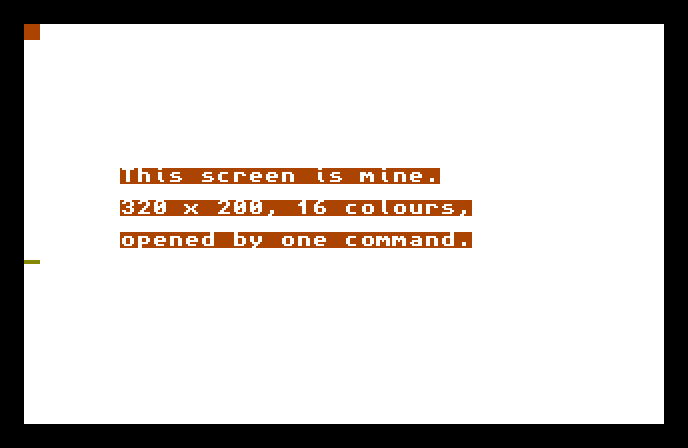
A clean screen, made by you. It looks calm because it’s empty and you cleared it to a pale colour — but the point isn’t what’s on it, it’s that you set its size, its colour count, and its resolution. From here on, the screen is something you build.
The whole program
Hide
Screen Open 0,320,200,16,Lowres
Cls 2
Locate 6,9
Print "This screen is mine."
Locate 6,11
Print "320 x 200, 16 colours,"
Locate 6,13
Print "opened by one command."
Wait Key
The one line that matters is the new one at the top:
Screen Open 0,320,200,16,LowresScreen Open makes a display, and the five values after it are its specification:
0— the screen’s number. AMOS lets you have several screens at once, each with its own number; this is screen 0. For now one screen is plenty, and 0 is the one to use.320— its width in pixels.200— its height in pixels. 320×200 is the classic Amiga game size — roomy enough to play in, small enough to push around quickly.16— how many colours it can show at once. More colours means more memory used and, later, more work to move things around; 16 is a comfortable middle.Lowres— the resolution.Lowresgives you big, chunky pixels — the look of most Amiga games, and the place to start with graphics. (There’s aHiresfor fine detail, at the cost of fewer colours and more memory.)
So that one line says: give me screen 0, 320 by 200, 16 colours, low resolution. Everything after it — the Cls, the Prints, and all the drawing to come — happens on the screen you just defined.
Why these choices
The numbers aren’t arbitrary; they’re a trade. Width and height set how much space you’ve got. Colour count and resolution cost memory and, when things start moving, time — a 32-colour hi-res screen is gorgeous and expensive, a 16-colour lowres screen is cheap and fast. Game makers picked the smallest screen that looked good enough, to leave room and speed for everything else. 320×200 in 16 colours is the sweet spot you’ll meet again and again.
Clearing your screen
You already know Cls. Here it clears your new screen — Cls 2 fills it with colour number 2, which in AMOS’s starting palette happens to be white. The colour numbers run from 0 up to one less than your colour count (0 to 15 here, for 16 colours). Which actual colour each number shows is the palette — and choosing those colours yourself is the next unit.
Type it and run it
Type the program in and press F1. Your screen opens, clears to white, and the three lines describe it. Press a key to return to the editor.
Try this: a different size
Change the 200 to 256 — Screen Open 0,320,256,16,Lowres — and run it. You’ve made a taller screen; 320×256 is the full PAL height many European Amiga games used. The numbers in Screen Open are yours to set.
Try this: fewer colours
Change the 16 to 2 and run it. A two-colour screen — just a background and one drawing colour. It’s the cheapest screen there is. You won’t make a lush game on it, but it shows the colour count is a dial you turn, with memory on the other end of it.
If it doesn’t work
- AMOS complains about
Screen Open. Check you’ve got all five values, separated by commas: number, width, height, colours, then the resolution word. - The resolution word is rejected. It’s
LowresorHires— one word, spelt as shown. Leave it off and AMOS won’t know which you meant. - The screen looks the same as before. That’s fine — a 320×200 lowres screen looks much like AMOS’s default. The win is that you opened it; the difference shows the moment you change the size or colour count.
What you’ve learnt
You opened a screen of your own. Screen Open number,width,height,colours,resolution makes a display to your specification — its size in pixels, how many colours it shows at once, and whether it’s Lowres (chunky, cheap) or Hires (fine, costly). Colour count and resolution trade against memory and speed, which is why 320×200 in 16 colours became the everyday choice. The screen is now yours to set up, not just one you were handed.
What’s next
You opened a 16-colour screen — but which 16 colours? Next — Colour and the Palette — you’ll choose them yourself, mixing your own shades and deciding exactly what each colour number shows.